
 Building a short AI-animated episode
This guide walks through making one short, vertical (9:16) animated episode of about 90–120 seconds. Here is a finished one: YouTube Short.
You will use an AI coding environment like Claude, Codex (ChatGPT Desktop), or Cursor. The work is split across four AI agents on Blocks that you can use in the different stages. Each one does a single job, and you review its output before you call the next one. All four run through Blocks, so you only need one Blocks API key (see below). You don’t need separate keys for Gemini, Runway, or any other model provider.
You don’t need to be technical. Your AI assistant does the installing, file handling, and agent calls. In each step, copy the request in the grey box into your assistant. Your job is the creative part: writing the brief and reviewing the script, the stills, and the clips.
| Step | Agent | What it does |
|---|---|---|
| Script | dse_episode_script | Turns a brief into a script, a shot list, and prompts |
| Visual bible | dse_visual_bible | Draws reference images for new characters, places, and props |
| Stills | dse_episode_stills | Renders one still image per shot |
| Clips | dse_episode_clips | Animates each approved still into a short clip |
The process at a glance:
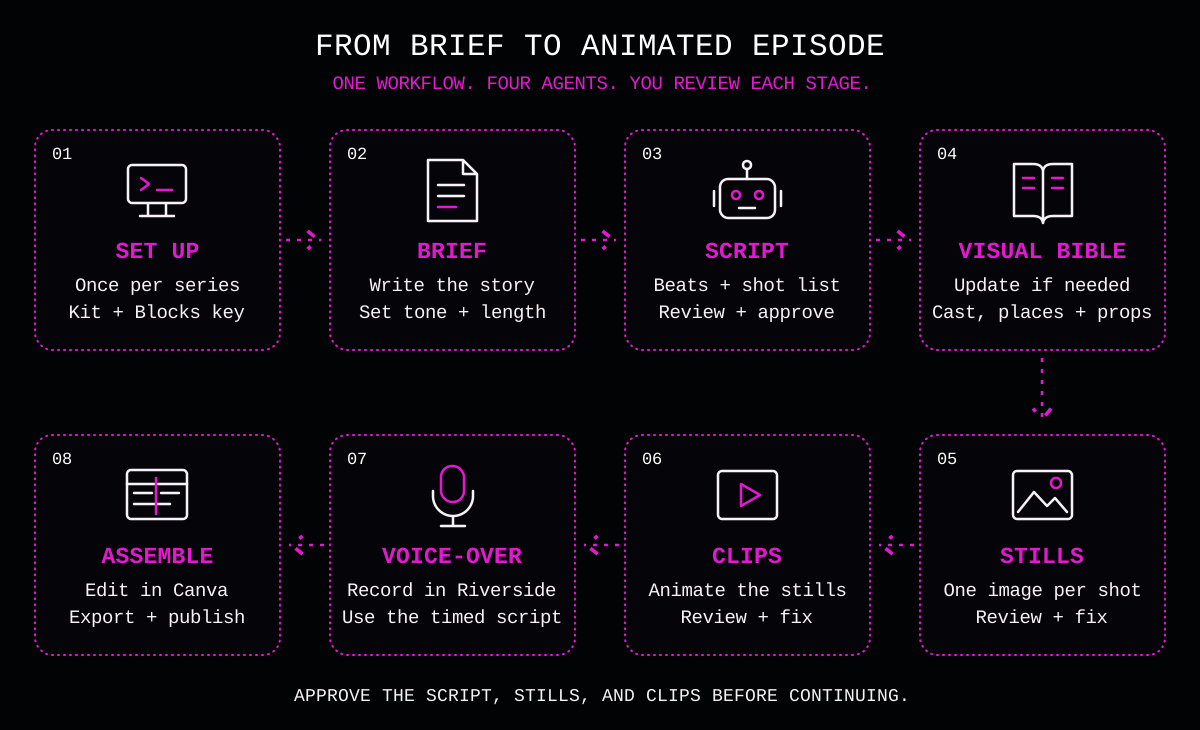
Your assistant works from three public resources:
- DSE episode kit, which contains the episode guide. That guide is the step-by-step manual your assistant follows, plus templates, scripts, and a worked example.
- Blocks caller skill, which teaches your assistant how to call agents on Blocks.
- DSE visual bible, the example style library (see step 2).
1. Set up (once)
Create a project folder
Create an empty folder for your series, for example my-series in your Documents folder. Everything for every episode will be saved in it.
Set up your AI coding environment
Create a new project in your AI assistant and point it at the folder you just created (in Claude Code, Codex, or Cursor, open or choose that folder). Everything the assistant creates for your episodes will then be saved there.
Sign up for Blocks
- Create an account at app.blocks.ai.
- You will need an API key, which you can get here: https://app.blocks.ai/manage/api-keys. Store the key somewhere safe, because you won’t be able to view it again.
- Ask the agent owner for an invite to each of the four agents above. They are private.
Let your assistant set everything up
Tell your assistant:
Set up this folder for making DSE episodes:
- Clone https://github.com/CagedEther/dse-episode-kit into this folder.
- Clone https://github.com/CagedEther/dse-visual-bible into a
visual-biblefolder inside it.- Install the Blocks caller skill from https://github.com/CagedEther/blocks-caller-skill/blob/main/blocks-caller/SKILL.md and run its one-time setup, including Node.js if I need it.
- Follow the Setup section of episode-guide.md.
When you need my Blocks API key, open the file it goes in so I can paste it there.
The assistant may ask for permission to install software. When it opens the key file, paste your API key after BLOCKS_API_KEY= and save the file.
Never paste your API key into the chat. If you do by accident, create a new key on the Blocks website and delete the old one.
Then check it works:
Inspect the dse_episode_script agent on Blocks.
You should see that the agent takes three inputs: brief, episode_number, and notes. If the assistant reports “Agent not found”, your invite to that agent hasn’t come through yet.
2. Create a visual style and visual bible
What a visual bible is
AI image models drift. If you ask for “a woman in a café” ten times, you get ten different women in ten different cafés, drawn in ten different styles. A visual bible fixes that. It’s a library the agents read on every call, and it defines:
- The style: palette, line weight, what’s allowed in solid black, and what’s banned (color, gradients, text, photorealism).
- Style plates: a few reference images that every generation is anchored to.
- The cast: one folder per character, with a reference image and a description. The description lists required marks (the two or three features that make the character recognisable) and forbidden marks (features they must never borrow from someone else).
- Wardrobe, locations, and props: recurring outfits, places, and objects, each with its own reference image.
- Cinematography and motion rules: framings and movements that animate well.
- A registry: an index the stills agent uses to attach the right reference images to each shot.
Write the bible once for the series and extend it as episodes need new things. Every still and clip is checked against it.
Example used for this exercise
The visual bible for this series is public: github.com/CagedEther/dse-visual-bible. Your assistant already copied it into your folder in step 1.
It uses black ink line art on warm off-white paper, with three drawing modes (brush, contour, silhouette), a lead character, a cast of AI “agents” drawn as people, and a few locations and props. To browse it:
Open visual-bible/index.html in my browser so I can see the cast, places, and props.
You can use it as-is, or use it as a template for your own style.
3. Write the episode brief
The brief is the only plot the script agent gets. It won’t invent characters or import other episodes, so the brief has to name who appears and what happens. Write the story, not the visuals: leave out hair, clothes, and furniture.
Tell your assistant:
Create story/episode-06/brief.md from episode-brief-template.md and open it for me to fill in.
Fill in:
- episode_number: for example
06. - notes: length (about 110 seconds), “voice-over only, no on-screen dialogue”, tone, and what to leave out.
- brief: Follows / Opening hook / Setup / Development / Turn / Cliffhanger / Leave them knowing.
For a full worked example, see the episode 05 brief, which explains multi-agent systems as a spy-crew montage.
If you’d rather start from an idea, ask: “Draft a brief in story/episode-06/brief.md from this idea: …”, and then edit what it writes.
Example brief ideas for AI education
Each idea teaches one concept through a small story:
- Testing image models with an agent. Based on the Dual-Engine Image Agent. She needs one product photo for a launch, and two image engines give her two very different answers. Her agent sends the same brief to both and lays the results side by side. The turn: neither engine is “right”. One nails realism, the other follows the instructions more closely. Leave them knowing: models differ, so test the same brief across engines and pick the one that fits the job.
- Prompting is briefing. She gets a vague result, rewrites the request the way she’d brief a new hire, and the output transforms. Leave them knowing: clear context beats clever wording.
- Agents vs. chatbots. A chatbot answers her question. An agent books the trip, checks the calendar, and asks before it pays. Leave them knowing: an agent takes actions with tools, inside limits you set.
- Human in the loop. An agent drafts fifty customer replies overnight, and one of them is confidently wrong. Leave them knowing: automate the volume and keep a person on the judgment calls.
- Shared agents, one key. A team shares an agent on Blocks instead of handing out API keys. Leave them knowing: publishing an agent lets others use it safely without the credentials.
4. Turn the brief into a script
Tell your assistant:
Follow step 1 of episode-guide.md: send story/episode-06/brief.md to dse_episode_script, save the results in story/episode-06, and open the script for me.
You get the script (episode.md), with the purpose, beat structure, timed voice-over, and shot list. The assistant also saves two prompt files that later steps use. You don’t need to open them.
Review the script. Read it out loud. Check that:
- The voice-over is third person and tells the story without describing the visuals.
- The beats run hook → setup → development → turn → cliffhanger.
- Each shot is one small action lasting 3–8 seconds.
If something is wrong, change the brief or the notes rather than the script, then ask: “Run the script agent again with the updated brief.”
5. Update the visual bible if the script needs it
At the bottom of the script is a Visual bible section listing any new characters, places, or props the episode needs. If it says None everywhere, skip this step.
Otherwise, tell your assistant:
Follow step 2 of episode-guide.md for the new entries the episode 06 script needs. Show me the candidate images for each one.
For each new entry, the assistant shows you up to three candidate drawings. Pick the one that fits best, for example “use b for the fan”. The assistant adds your pick to the library and connects it to the shots that need it.
6. Create stills for review
Tell your assistant:
Follow step 3 of episode-guide.md: render the stills for episode 06, then build the stills review page and open it.
The stills agent draws one image per shot, using the visual bible so the characters and places stay consistent. This takes a few minutes.
7. Review the stills in the review page
The review page shows each still beside what the shot is meant to show and the voice-over that plays over it. For each shot, either move on, or tick Needs fix and write a note, such as “her expression reads as a smile; make it neutral”. Your notes are saved in your browser.
Reject a still if it has text, color, the wrong person, or a character who looks different from their reference image.
When you’ve been through every shot, click Copy fix list and paste it to your assistant:
Redo these stills, then rebuild the review page: [paste fix list]
Repeat until every still is approved. Don’t make clips until then. You can see a finished example review page in the kit at story/episode-05/stills-review.html.
8. Create clips for review
Tell your assistant:
Follow step 4 of episode-guide.md: animate the approved episode 06 stills, then build the clips review page and open it.
Each clip starts from its still and adds one small movement. Small motions animate best: a blink, a glance, a slow head turn, cloth moving. This step takes the longest, so let it run. If you’re curious why some clips work better than others, see the motion clip guide.
9. Review the clips in the review page
The clips page works the same way as the stills page. Watch every clip all the way through, and pay particular attention to the mouth, because gestures can make a character look like they’re talking.
Flag a clip if a head turns too far, a face morphs, an object appears, or the character seems to talk. Then paste the fix list to your assistant:
Redo these clips with 3 takes each, and show me every take: [paste fix list]
Pick the best take for each shot. Repeat until every clip is approved.
10. Record the voice-over and assemble the episode
Once every clip is approved:
- Record the voice-over. Read the timed voice-over from
episode.md. I record in Riverside, then export the audio as MP3 or WAV. - Assemble in Canva. Create a 9:16 video at 1080 × 1920. Lay down the voice-over track first, then place each clip in shot-list order (you’ll find them in the original project folder you created) and trim it to the beat it covers. Add music, captions, and a title card if you want them.
- Export and publish as a YouTube Short, Reel, or TikTok.
Keep the final MP4 and the voice-over in the episode folder alongside everything else, for future reference.